
View Available Models
Applicable roles: Organization (top-level user), sub-user, developer Last updated: 2026-07-14
This document explains how to view the models available on the platform, helping you understand the difference between "which models the platform offers" and "which models I can use."
1. First, distinguish two concepts
| Concept | Meaning | Where to view |
|---|---|---|
| Models publicly offered by the platform | The models the platform currently offers externally, displayed by public group | Model Marketplace (no login required) |
| Models I can use | The models your organization can actually call, limited by group authorization and model scope | Console "Call Guide" (login required), Model Marketplace, or API query |
In short: the Model Marketplace is the "menu," and the Call Guide is "the dishes you ordered." Just because a model appears in the Model Marketplace doesn't mean you can necessarily use it—it depends on which groups your organization is authorized for.
2. View models publicly offered by the platform (Model Marketplace)
The Model Marketplace is the platform's public model showcase page, accessible without login. The entry point is on the platform's official homepage.
In the Model Marketplace you can see:
- The models the platform currently offers publicly and their providers
- The price of each model under each public group
- Price comparisons across different groups
The Model Marketplace displays models that are priced and available under public groups. If your organization has an exclusive group (dedicated channel), the models within it will not appear in the Model Marketplace; you need to log in and view them in the Call Guide.
3. View the models I can use (Call Guide)
After logging in to the console, find the "Call Guide" page in the left-hand menu.
The Call Guide lists, by group, all the models you currently have actual access to, including public groups and the exclusive groups you are authorized for. Each model displays:
- The model name (e.g.,
claude-sonnet-4-6)—when called, it routes through the group bound to your Key - The call name with a group identifier (e.g.,
5MHXZWKA/claude-sonnet-4-6)—when called, it routes directly to the specified group (available when group-identifier routing is enabled)
You can copy the call name directly and paste it into your code or tool configuration.
Organizations and sub-users see different scopes:
- Organization (primary user): sees all models under public groups + authorized exclusive groups
- Sub-user: on top of the organization's visible scope, is further limited by the group bound to your Key, showing only the portion you can actually call
Default model configuration page:
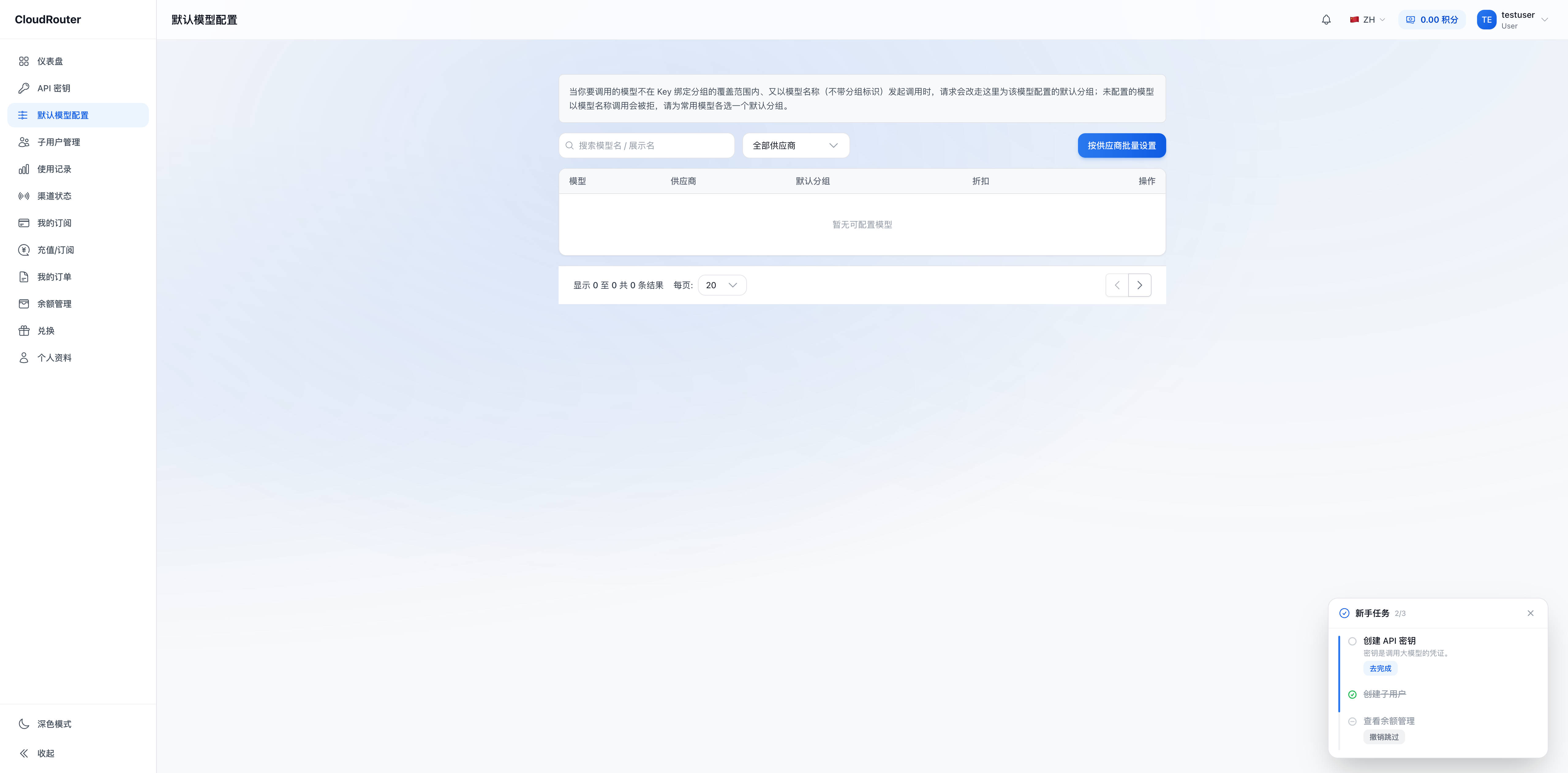
If you cannot see a certain model in the Call Guide, it means your organization is not authorized for that model or its corresponding group. Please contact your organization administrator or platform support.
4. Query available models via API (developer)
If you're writing code, you can also query the list of models the current Key can call via the API:
curl YOUR_API_BASE_URL/models \
  -H "Authorization: Bearer YOUR_API_KEY"
The response is the list of available models under the routing group bound to the current Key.
This endpoint uses the same underlying data as the Model Marketplace (the model whitelist of each account under a group), so the returned models are always a subset of the corresponding group's content in the Model Marketplace, with no discrepancy.
Note:
- Different Keys bind to different groups, so the queried model list may differ
- If you use a call name with a group identifier (specifying group routing), the models under the target group may not appear in this endpoint's response—group-identifier routing does not depend on this list; as long as the group actually supports the model, the call will succeed
5. Comparison of the three methods
| Method | Scope shown | Login/Key required | Suitable scenario |
|---|---|---|---|
| Model Marketplace | Priced, available models under public groups | Not required | Understanding which models the platform offers, comparing group prices |
| Console "Call Guide" | Models your organization/Key can actually call (including exclusive groups) | Login required | Looking up call names, copying into code, confirming available scope |
GET /v1/models API |
Models under the group bound to the current Key | API Key required | Dynamically fetching the callable model list in code |
The three share the same data source: all derived from the model whitelist configured for each account under a group. The only difference is the filtering scope—the Model Marketplace aggregates across all public groups, the Call Guide aggregates across your authorized groups, and the API returns based on the group bound to a single Key.
6. FAQ
Q: Why is a model that appears in the Model Marketplace missing from the Call Guide? A: The Model Marketplace displays available models under public groups, but your organization is not necessarily authorized for all public groups. To enable more groups, please contact your administrator or platform support.
Q: Why is a model that appears in the Call Guide missing from the Model Marketplace? A: Your organization may have an exclusive group (dedicated channel), whose models are only visible to authorized organizations and do not appear in the public Model Marketplace.
Q: The list returned by /v1/models differs from the one in the Call Guide?
A: /v1/models returns the models under the single group bound to the current Key. The Call Guide displays the aggregate of all your available groups. If you have multiple Keys bound to different groups, the lists queried by each Key will differ, but aggregated together they should match the Call Guide.
Q: How do I find out the price of a certain model? A: Find the model in the Model Marketplace to see its unit price under each public group. After logging in, you can also see the pricing information for your available groups in the Call Guide.
Q: A sub-user sees fewer models than the organization administrator? A: This is normal. A sub-user's visible models are further limited by the group bound to the Key. If you need access to more models, please contact your organization administrator to adjust group authorization or create a Key bound to a different group.