
API Key Management
Applicable role: Sub-user Updated: 2026-07-14
An API Key is your credential for calling AI models. Sub-users can create Keys on their own. This document explains how to create, configure, and manage your API Key.
For routing rules and how to write call names, see the Call Guide; for the complete API integration methods, see the Developer Guide.
1. Create an API Key
- Go to the "API Keys" page (
/keys) - Click "Create Key"
- Configure the following items:
| Configuration item | Description |
|---|---|
| Name | The display name of the Key (placeholder: My API Key) |
| Routing group (model names use this group) | Select a group from the dropdown. Model names without a group identifier will be routed to this group. If not selected, model name calls use the default routing configuration (sub-user default → organization default → platform default); if the default routing also doesn't cover it, the call is rejected. Model IDs with a group identifier are always routed by the group identifier and are not affected by this item |
| Custom key | Toggle; allows you to customize the Key content |
| IP restriction | Toggle; configure IP restrictions |
| Quota limit | Input box (credits); sets the maximum amount this key can spend. 0 = unlimited |
| Rate limit | Toggle |
| Key validity period | Toggle |
The configuration window that pops up after clicking "Create Key":
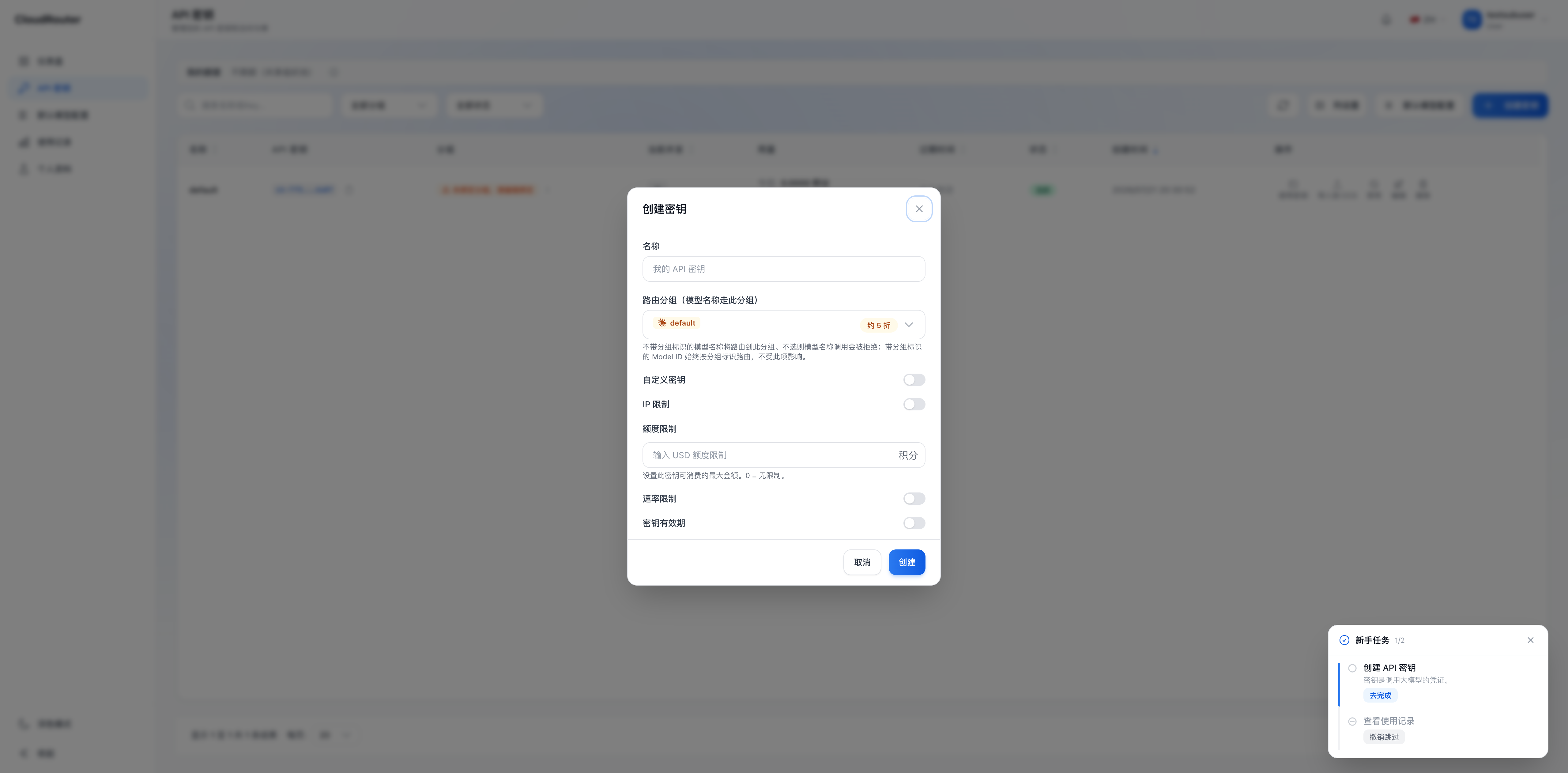
- After submitting, the system generates the complete Key. Copy and store it securely immediately. The Key is shown in full only once at creation; afterward only a masked version is displayed.
2. Routing Groups and Default Routing
Routing Groups
A routing group is essentially a service plan label. The same model can be provided through different groups, and different groups may correspond to different channels and prices. Groups are maintained uniformly by the platform, and your organization administrator decides which groups are available to you.
Binding Rules
- When creating a Key, you can choose to bind a routing group (optional, no longer mandatory)
- The routing group dropdown only lists the groups the organization has authorized for you
- For a Key bound to a group, model name calls prioritize the bound group
If the group you want is not in the dropdown, it means the organization has not yet authorized that group for you. Please contact your organization administrator.
Default Routing
If a Key is not bound to a group, model name calls follow the default routing configuration (sub-user default → organization default → platform default). You can configure in the console which group each model name defaults to.
3. Manage Existing Keys
On the "API Keys" page (/keys), you can view and manage all Keys under your account. The list displays the following information:
| Column | Description |
|---|---|
| Name | The display name of the Key |
| API Key | The masked key (e.g., sk-062...8c96), which can be copied |
| Group | The name of the bound group; if unbound, displays "No group bound, please edit to bind" (orange warning) |
| Usage | Credits spent today and over the last 30 days |
| Expiration | Never expires or a specific date |
| Status | Active/Disabled |
| Created | Creation date and time |
| Actions | Use key, Import to CCS, Disable, Edit, Delete |
The sub-user API Keys page (quota usage is shown at the top):
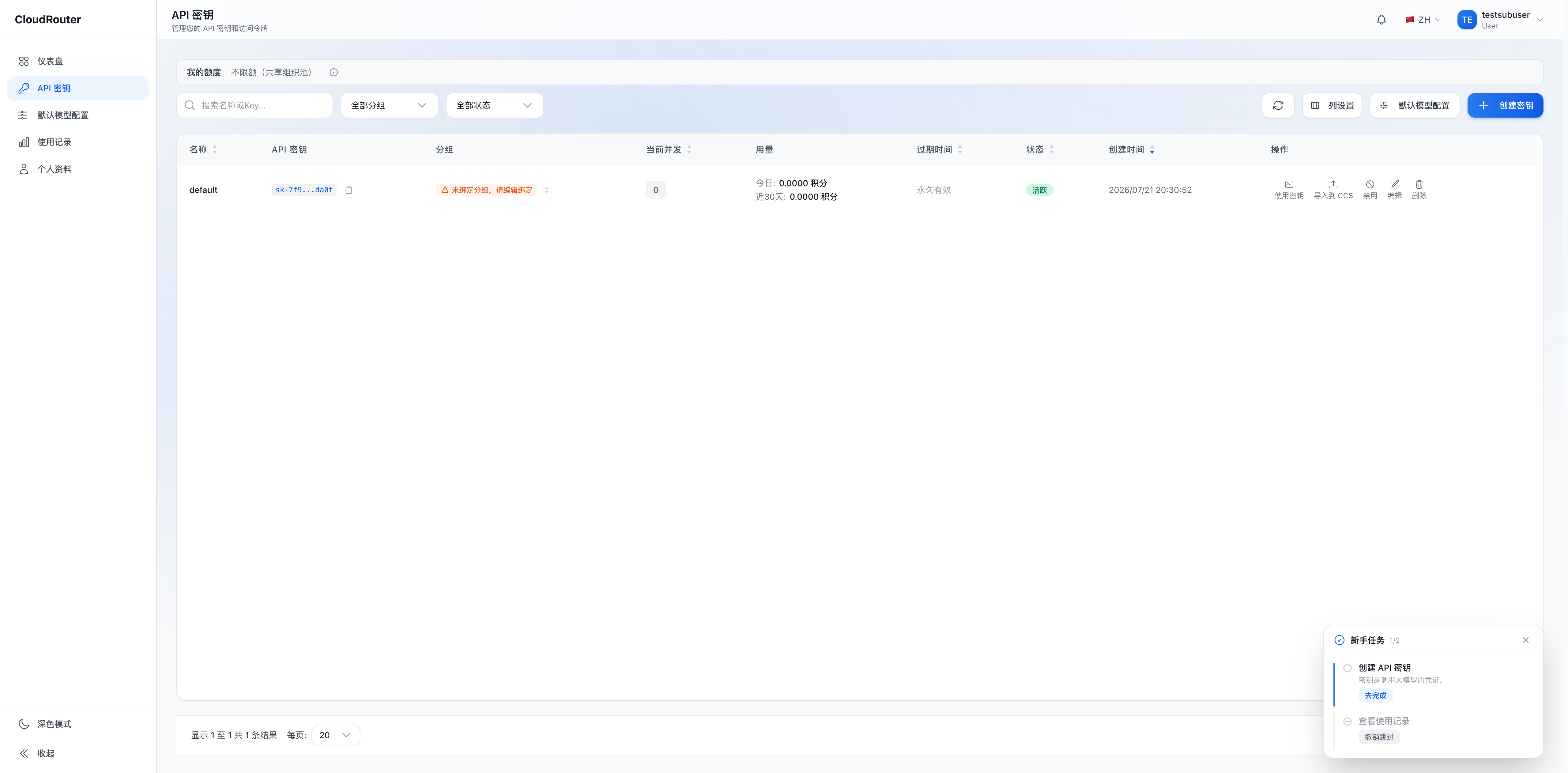
The top of the sub-user API Keys page also displays quota usage: "My Quota: Used X / Y credits, Remaining Z".
Available Actions
- Use key -- View and copy the full key
- Import to CCS -- Import the key into CCS
- Edit -- Modify the Key's name, routing group, IP restriction, quota limit, rate limit, validity period, and other configurations
- Disable / Enable -- Once disabled, the Key becomes invalid immediately; enabling restores it
- Delete -- Permanently delete the Key; it cannot be recovered
4. About Advanced Features
Scheduling Group Whitelist
This is an advanced configuration item that only the organization (top-level user) can set; sub-users neither need to worry about it nor can configure it. In short: it is used to constrain which groups can be reached by calls carrying a group identifier after group identifier routing is enabled.
Group Identifier Routing
Group identifier routing is an advanced capability that becomes available only after both the platform and the organization have enabled it. Once enabled, you can obtain call names with a group identifier on the "Call Guide" page to target a specific group. When it is not enabled, it does not affect your use of model name calls.
5. IP Restriction
Sub-users can configure IP restrictions for their own Keys to limit where a Key can be used from:
- When creating or editing a Key, turn on the "IP restriction" toggle to configure the allowed or denied IP addresses
- Once configured, only source IPs that match the rules can use the Key
6. Multiple Keys and Shared Quota
An important concept: all Keys under your account share the same quota limit.
- No matter how many Keys you create, their spending accumulates against your total quota
- Each Key does not have its own independent quota
- Actual charges are always deducted from the balance of the organization you belong to; you do not need to top up yourself
There is a "My Quota" bar at the top of the page that displays your current quota usage in read-only form (format: "My Quota: Used X / Y credits, Remaining Z"). For details, see Dashboard and Quota.
7. FAQ
Q: Can sub-users create Keys themselves? A: Yes. Sub-users can create Keys on their own on the "API Keys" page, with routing groups limited to the scope authorized by the organization.
Q: Do I have to select a group when creating a Key? A: Not necessarily. If you or the organization has already configured default routing, a Key can be used for model name calls even without a bound group.
Q: What should I do if the group I want is not in the dropdown? A: The dropdown only shows groups the organization has authorized for you. If a group is missing, please contact your organization administrator to add the authorization for you.
Q: What should I do if a Key is lost or I suspect it has been leaked? A: Immediately find the Key on the "API Keys" page, disable or delete it, and then create a new Key. A disabled or deleted Key becomes invalid immediately and cannot be recovered.
Q: Will creating multiple Keys give me multiple quotas? A: No. All Keys under your account share the same quota limit, and spending is accumulated together.
Q: I can't see the full key after creating a Key? A: The Key is shown in full only once at creation. If you did not save it, you need to delete this Key and create a new one.