
Dashboard and Quota
Applicable role: Sub-user Updated: 2026-07-09
The dashboard is your home page after logging in, showing an overview of your balance and recent usage. This article explains the contents of the dashboard, what quota means, and how to check your remaining quota.
1. The Dashboard Page
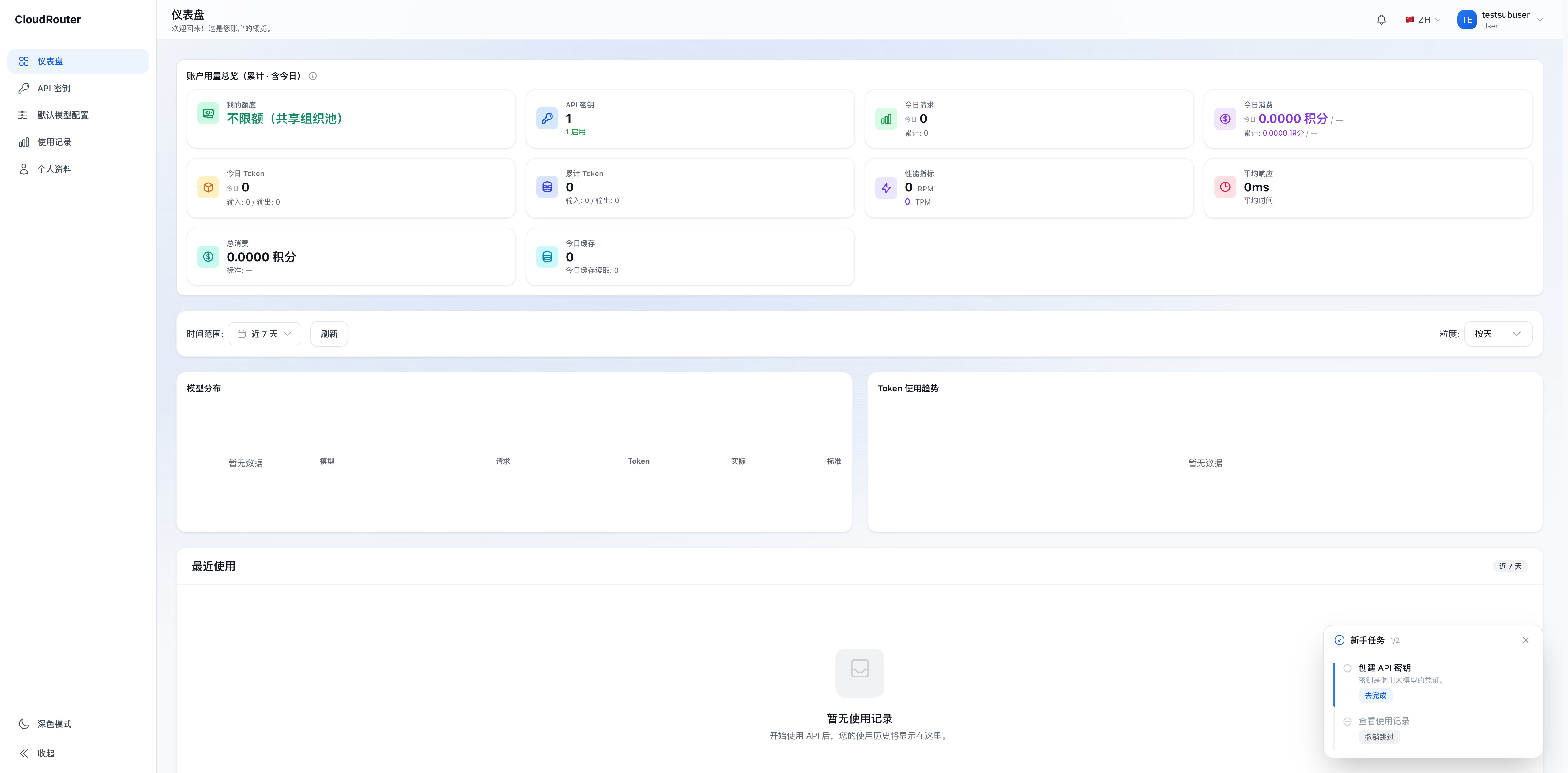
The dashboard (/dashboard) is the default page for sub-users after logging in. Its content is read-only and mainly displays:
- Balance overview -- The current balance and quota status of your account
- Recent usage -- Recent API call spending trends
All data on the dashboard is read-only. Sub-users cannot top up or modify quotas on this page.
Sub-user dashboard page (quota information shown in the top-left corner):
2. Understanding "Quota"
As a sub-user, you need to understand a few key points about quota:
-
Quota is the spending limit your organization sets for you -- When your organization admin creates or edits your account, they set a quota limit for you (unit: credits). This is the maximum amount you can spend.
-
All Keys under your account share the same quota -- No matter how many API Keys you create, their consumption is deducted from the same quota pool, rather than each Key having its own independent quota.
-
Actual charges are deducted from the organization's balance -- The fees generated by your API calls are actually deducted from the balance pool of the organization you belong to. You don't need to top up yourself, nor can you see the organization's balance details.
-
You cannot continue making calls once the quota is used up -- When your cumulative consumption reaches the quota limit, subsequent calls will be rejected until the organization admin raises your quota.
3. Checking Remaining Quota
You can check your quota status in two places:
- Dashboard page (
/dashboard): The balance overview area displays the current quota status - API Keys page (
/keys): There is a "My Quota" bar at the top of the page that displays your quota usage in read-only form (format: "My Quota: Used X / Y credits, Remaining Z")
The quota information shown in both places is consistent and read-only.
4. What to Do When Your Quota Is Used Up
Once your quota is used up, none of your Keys will be able to make further calls. At this point, you need to:
- Contact your organization admin and explain that your quota is used up
- Have the admin raise your quota limit in "Sub-user Management"
- Once the quota is raised, your Keys can resume making calls
You cannot top up or adjust the quota yourself. Quota allocation is entirely controlled by the organization admin.
5. FAQ
Q: Is the balance shown on the dashboard my own money? A: No. Sub-users do not have an independent funds account. The balance information you see reflects your quota usage; the actual funds are managed by the organization.
Q: Are quota and balance the same thing? A: Not exactly. "Balance" is the organization's funds pool, topped up and managed by the organization; "quota" is the spending limit the organization sets for you. Your consumption is deducted from your quota and also from the organization's balance.
Q: Can I see how much balance the organization has left? A: No. Sub-users can only see their own quota usage and cannot view the organization's balance details.
Q: Can quota be transferred to other sub-users? A: No. Each sub-user's quota is set independently by the organization admin, and quota cannot be transferred between sub-users.
Q: Is consumption deducted in real time? A: The consumption generated by API calls is reflected in your quota usage within a short time. The actual posting time is subject to what is displayed in the console.