
Activation and Login
Applicable role: Sub-user Last updated: 2026-07-09
Sub-user accounts are created by an organization administrator. You complete account activation with an activation code, set a password, and then log in to the console. This article describes the complete process from receiving your activation code to logging in successfully.
1. You Received an Activation Code
The organization administrator created an account for you under "Sub-user Management" in the console. Once the account is created, an activation code is generated. The administrator will send you the activation code via instant messaging, email, or another channel.
What the activation code does:
- Verifies your identity and associates you with your organization
- Can only be used once, and becomes invalid after successful activation
- If you did not receive an activation code, contact your organization administrator directly to request one
2. Activation Steps
Activation page:
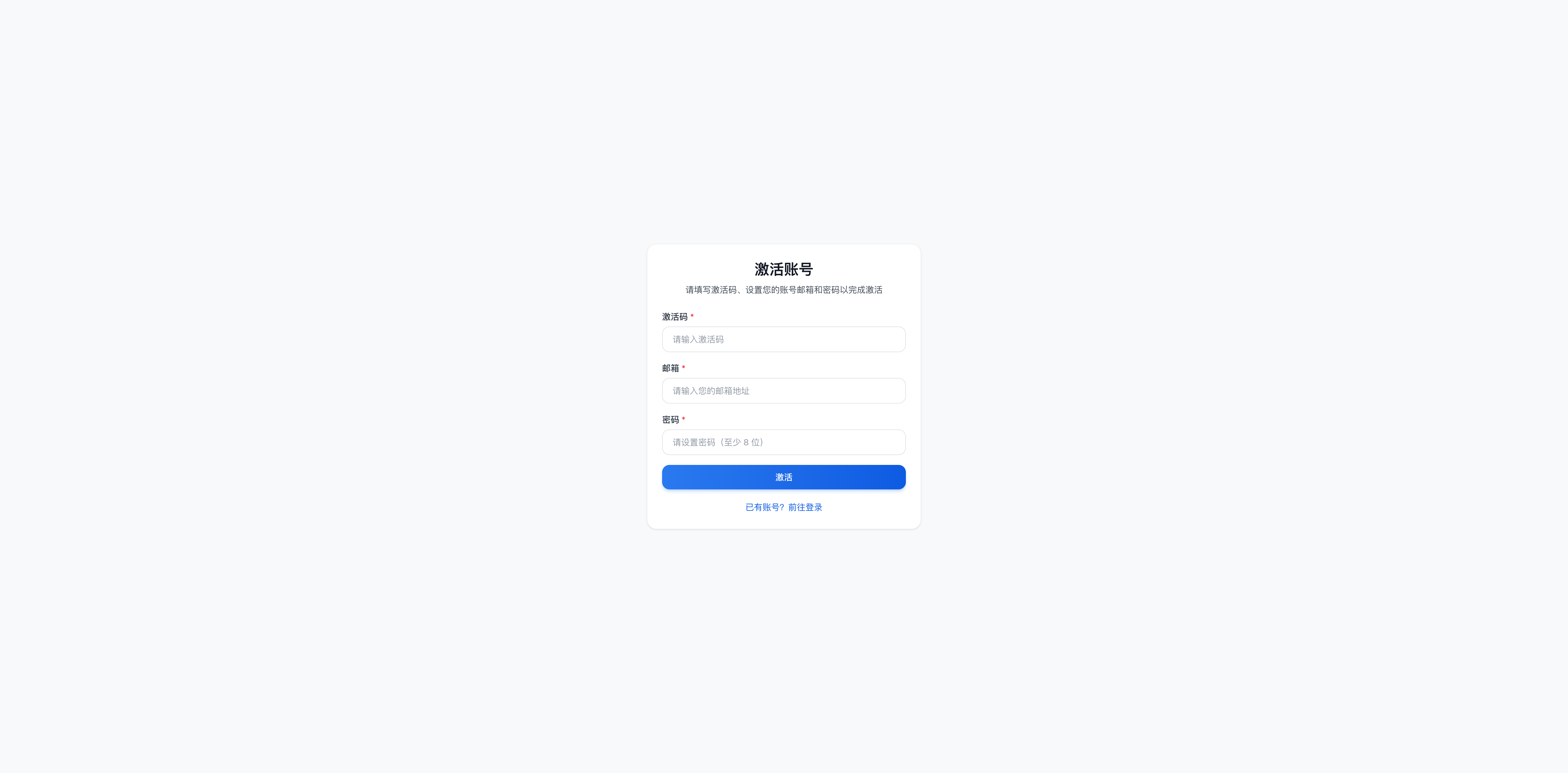
- Open the activation page in your browser: the console activation page (link provided by your administrator)
- Enter the activation code provided by your administrator in the activation code field
- Set your login password
- Accept the terms of service
- Click Confirm to complete activation
After activation succeeds, the system will prompt you to go to the login page.
3. Logging In and Getting Started
- Go to the console login page: the console (URL provided by your administrator)
- Enter your username and the password you set during activation
- Accept the terms of service and log in
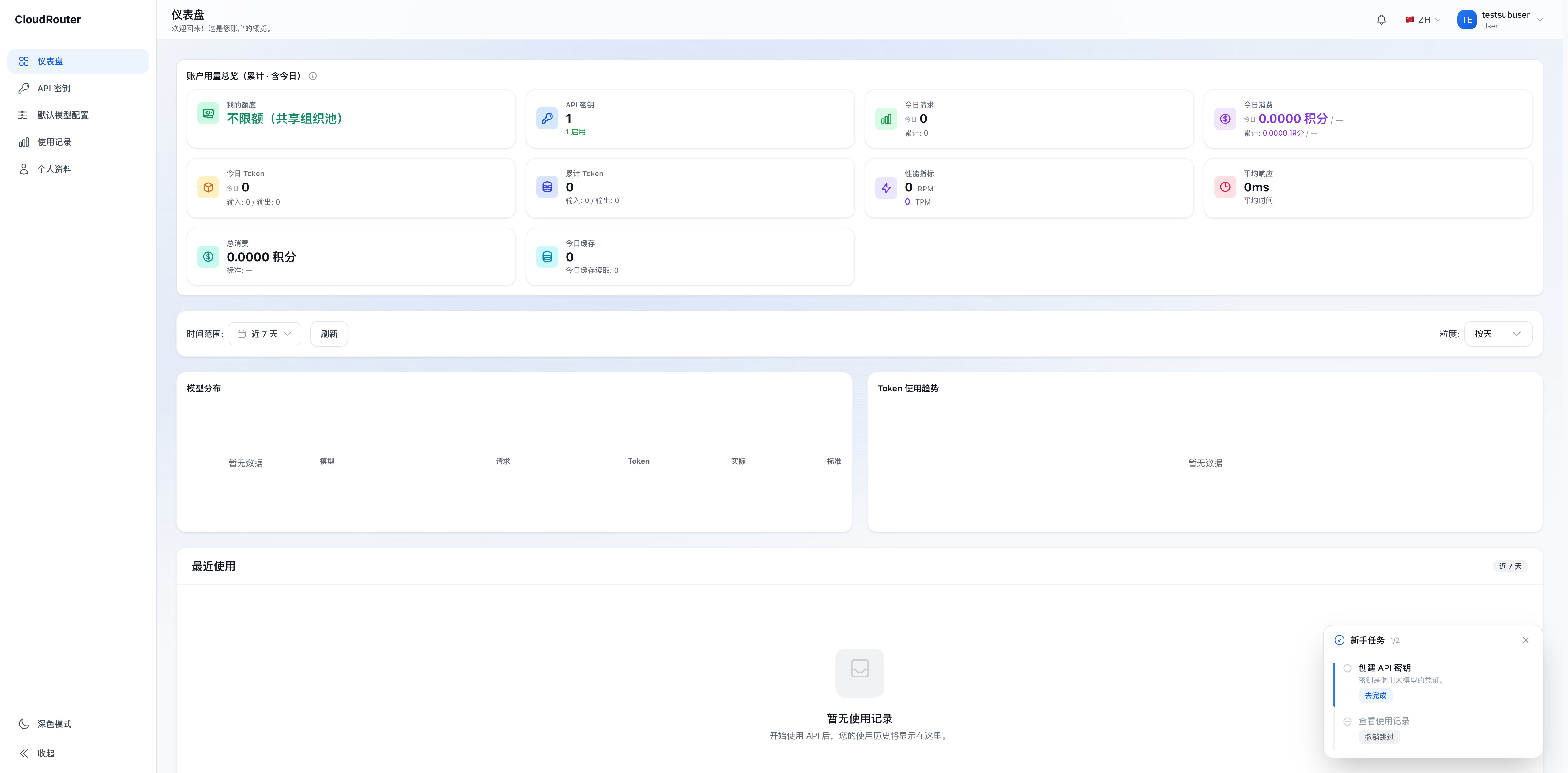
After logging in successfully, you will see 5 menu items in the left navigation bar:
| Menu | Description |
|---|---|
| Dashboard | Balance overview and recent usage (read-only) |
| API Keys | Create and manage your API keys |
| Default Model Configuration | Set a default routing group for each model |
| Usage Records | View your call history |
| Profile | Change your password and view account information |
If you see far more than 5 menu items, your account is an organization (top-level user). Please refer to the Administrator Manual.
After logging in, you enter the dashboard:
4. Forgot Password
If you forget your login password, you can recover it in the following way:
- Click "Forgot Password" on the login page
- Complete identity verification as prompted
- Set a new password and log in again
If you cannot reset your password through the self-service option, contact your organization administrator for assistance.
5. FAQ
Q: What should I do if I didn't receive an activation code? A: Activation codes are created and issued by your organization administrator. Please contact your administrator directly to request one. Platform support cannot generate an activation code for you.
Q: The activation code is reported as invalid after I enter it. Why? A: Possible causes: the activation code has already been used (each activation code can only be used once), or the activation code was entered incorrectly (watch out for capitalization and spaces). Please contact your organization administrator to confirm or regenerate it.
Q: Which account do I use to log in after activation succeeds? A: Log in with the username that the organization administrator set when creating your account. The password is the one you set yourself during activation.
Q: After logging in, I found there aren't 5 menu items. Why? A: The number of menu items depends on your account role. Sub-users always have 5, while organizations (top-level users) have more. If the number of menu items does not match what you expected, contact your organization administrator to confirm your role.