
Admin Handbook Overview
Applicable role: Organization (top-level user) Last updated: 2026-07-14
Welcome to the new console. This overview helps you understand three things in under 3 minutes: which tier you're in, what you can do, and where to find each feature in the console.
This guide corresponds to the "Platform — Organization — User" three-tier system of the new console. If you're still using the old console, some menu names differ from this guide — please refer to the actual console interface.
1. Which Tier You're In: The Three-Tier Account System
The new console organizes accounts into three tiers, with the scope of capabilities narrowing at each level:
| Tier | Role | Scope of Authority | Who Holds It |
|---|---|---|---|
| Tier 1 | Platform | All organizations across the platform | Official platform operations |
| Tier 2 | Organization (top-level user) | The organization's balance, sub-users, and usage | Enterprise account holder (usually the registrant) |
| Tier 3 | User / Sub-user | Only their own Key calls and usage | Developers / callers under the organization |
This guide is intended for the Organization (top-level user) and the sub-users under it. For a detailed comparison of the capabilities of the three tiers, see Roles and Permissions; for the full picture of the system, see Account System Overview.
Relationship to the old version: The old version's "tenant / tenant admin" is the "organization" in the new version, and the old version's "regular member" is the "sub-user." This is a semantic upgrade — your account and balance are seamlessly preserved, and no re-registration is needed. For details, see Migration and Transition Notes.
2. What You Can Do
The Five Core Responsibilities of an Organization (Top-Level User)
- Manage users -- Create, edit, and disable sub-users, and set business information (username, delivery email)
- Manage funds -- Recharge, set quota caps for sub-users, view balance transactions, and issue invoices
- Manage Keys -- Create Keys, optionally bind routing groups, and configure default routing
- View usage -- View organization-level and sub-user-level usage, bills, and overdue-payment alerts
- Select models -- View available models and their call names in the Model Marketplace or the Call Guide
Platform-level configurations such as model pricing and availability scope are managed uniformly by the platform. Prices are as displayed on the "Model Marketplace" or the console "Redeem" page.
3. Console Menu Map
What an Organization (Top-Level User) Sees After Logging In (Frontend)
| Menu | Purpose | Corresponding Doc |
|---|---|---|
| Dashboard | View balance, spending trends, model distribution, and recent usage | Billing and Usage Monitoring |
| API Keys | Create/manage Keys, optionally bind routing groups | API Keys and Routing Groups |
| Default Model Configuration | Configure which group a model name routes to by default | API Keys and Routing Groups |
| Sub-user Management | Create/manage sub-users, set quotas, and view their usage | Sub-user Management |
| Usage Records | View call details by user/time | Billing and Usage Monitoring |
| Channel Status | View the channels available to the organization and their health status | Region and Model Scope |
| My Subscription | View the current subscription plan and status | — |
| Balance Management | Organization balance pool, recharge records, transactions | Balance Management and Quota Allocation |
| Redeem | Redeem balance with a redemption code | Recharge and Redemption Codes |
| Profile | Edit account information | — |
Sidebar menu after an organization logs in:
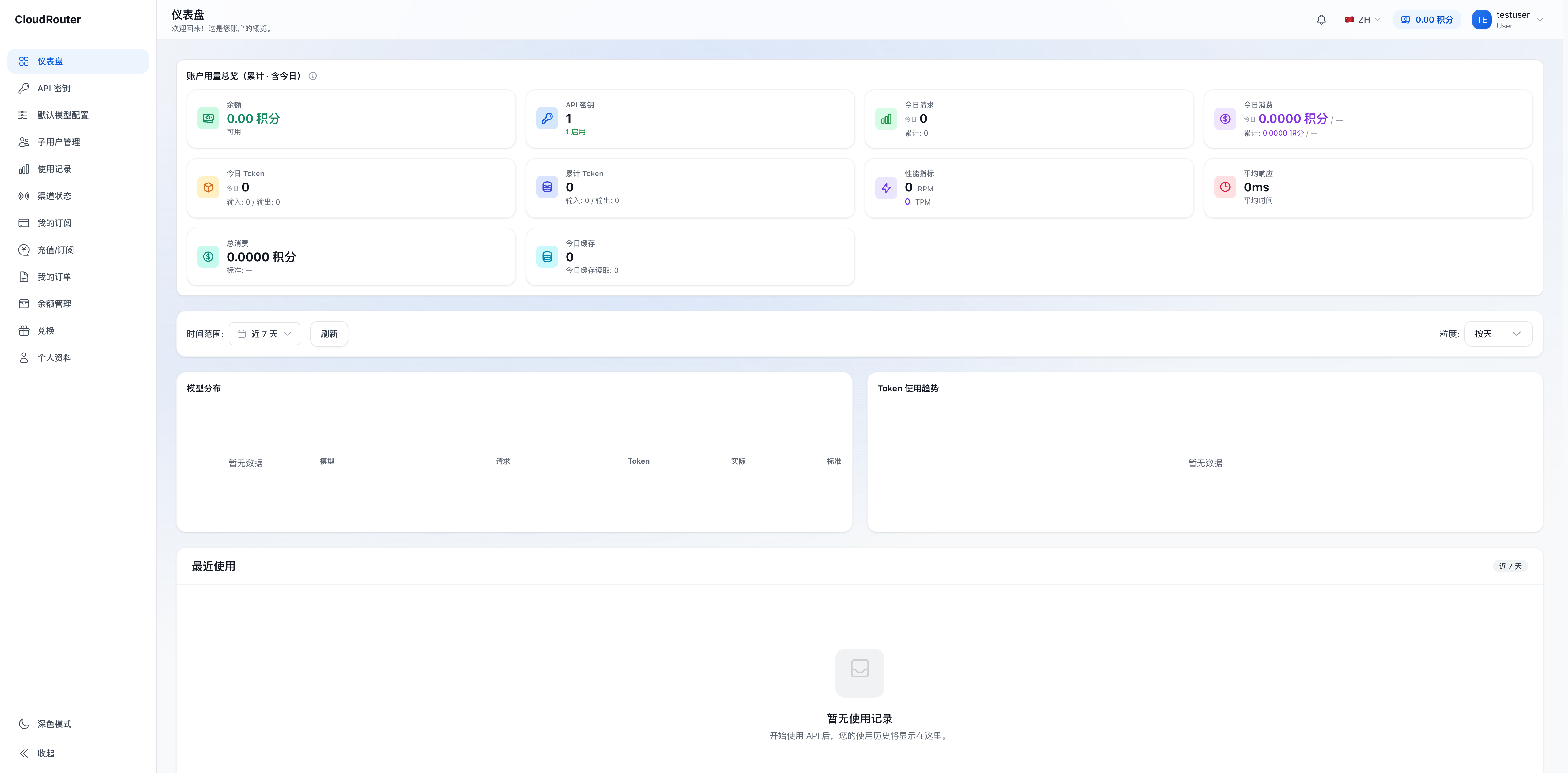
Sub-users see fewer menus after logging in, mainly: Dashboard, API Keys, Default Model Configuration, Usage Records, and Profile. They cannot see organization-exclusive entries such as Sub-user Management, Balance Management, or Redeem.
4. Onboarding Path for a New Organization (Recommended Order)
For first-time use, we recommend going through the following steps in order:
- Confirm your account identity and available scope -- see "The Three-Tier Account System" and "Migration and Transition Notes"
- Recharge and add funds to the organization balance pool -- see "Recharge and Redemption Codes"
- Create sub-users and set quota caps -- see "Sub-user Management"
- Create Keys and bind routing groups -- see "API Keys and Routing Groups"
- Obtain model call names and integrate them into your code -- see "Developer Guide - Call Guide and Routing Notes"
- Day-to-day: view usage and issue invoices as needed -- see "Billing and Usage Monitoring" and "Invoices and Receipts"
5. Quick FAQ
| Question | Where to Look |
|---|---|
| What did my account become after upgrading from the old version? Is my balance still there? | Migration and Transition Notes |
| What exactly is the relationship between organizations, users, and sub-users? | Account System Overview |
| Can sub-users create their own Keys? | Yes, sub-users can create Keys on their own (routing groups are limited to the organization's authorized scope), see Sub-user Management |
What should I put in model when making a call? |
Just enter the model name; for details, see Call Guide and Routing Notes |
| Why are some models unavailable? | Availability scope is configured by the platform per organization, see Region and Model Scope |
| How do I issue an invoice? | Download the receipt + fill out the invoicing questionnaire, see Invoices and Receipts |