
Sub-user Management
Applicable role: Organization (top-level user) Updated: 2026-07-09
Sub-users are the callers under an organization. This document explains how an organization creates and manages sub-users, sets their business information and quota limits, and how sub-users' Keys and usage are aggregated.
For the capability boundaries of sub-users, see Roles & Permissions; for the three-tier relationship, see Account System Overview.
1. What Is a Sub-User
In the new console, a sub-user is a usage entity under an organization (top-level user). It holds a Key to call models, and its consumption is charged against the organization's balance pool. Sub-users correspond to "team members" in the old version.
- Sub-users can log in to the console, but only have 5 menu items: Dashboard, API Keys, Default Model Configuration, Usage Records, and Profile
- Sub-users share the organization's balance pool, and their consumption is always deducted from the organization's (parent account's) balance
- The organization can set a quota limit for each sub-user to cap its consumption
Prerequisite: You are already an organization (top-level user). Only organization accounts can access sub-user management.
2. Access Point
After the organization logs in to the console, go to the left navigation bar → Sub-User Management (/sub-users).
Once inside, you can see a list of all sub-users under the organization. In the user list, sub-users are marked with a "Sub-User" tag to distinguish them from the organization itself.
Sub-user management page:
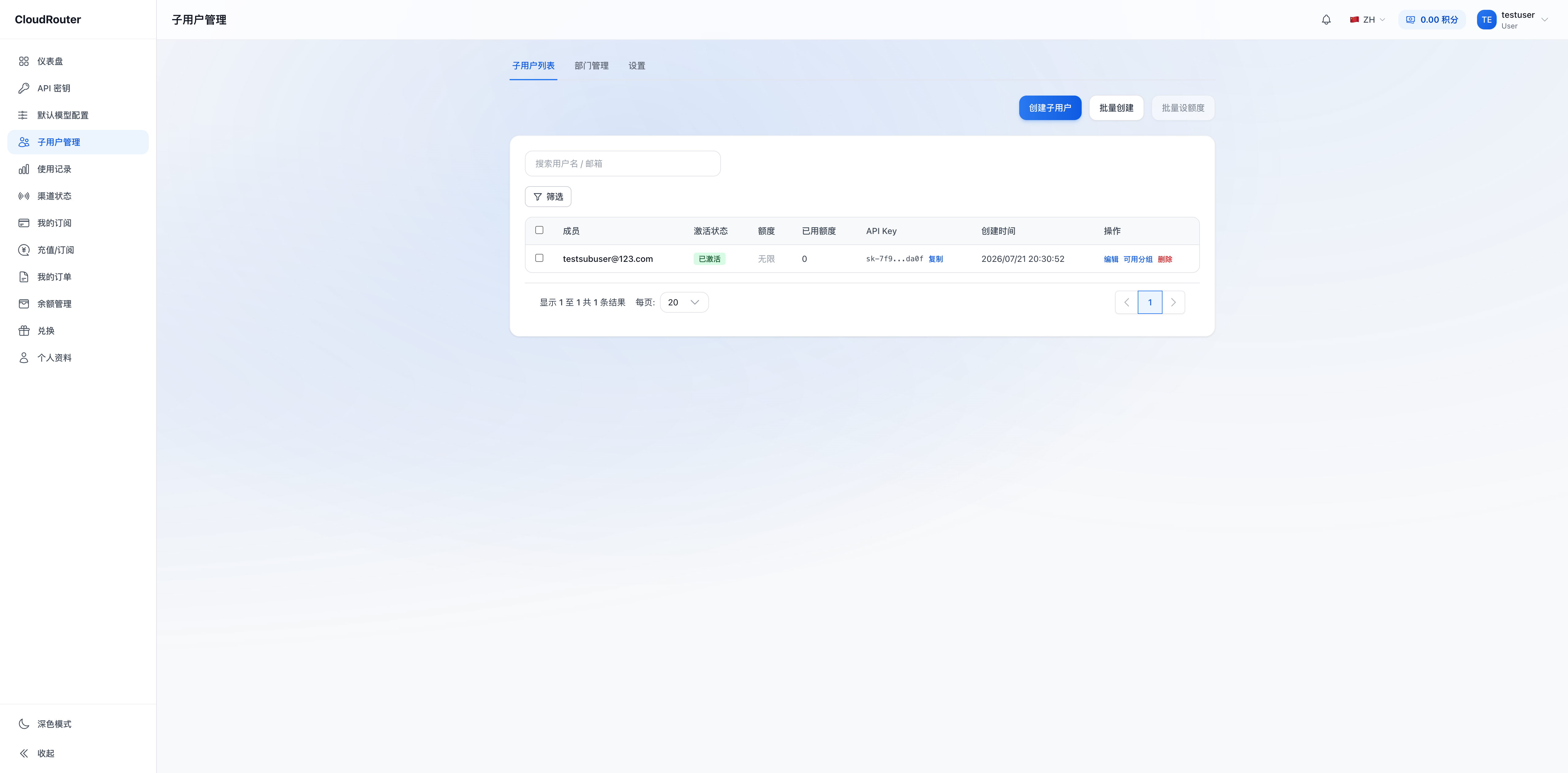
List Fields
| Column | Description |
|---|---|
| Member | Username and email |
| Activation Status | Activated / Not activated |
| Quota | Quota limit |
| Used Quota | Consumed quota |
| API Key | Number of Keys |
| Created At | Creation date |
| Actions | Edit, delete, etc. |
3. Creating a Sub-User
Steps
- On the sub-user management page, click the "Create Sub-User" entry
- Fill in the business information and quota configuration in the pop-up dialog
- After confirming everything is correct, submit. The list will refresh automatically, and the new sub-user will appear in it
The configuration window that pops up after clicking "Create Sub-User":
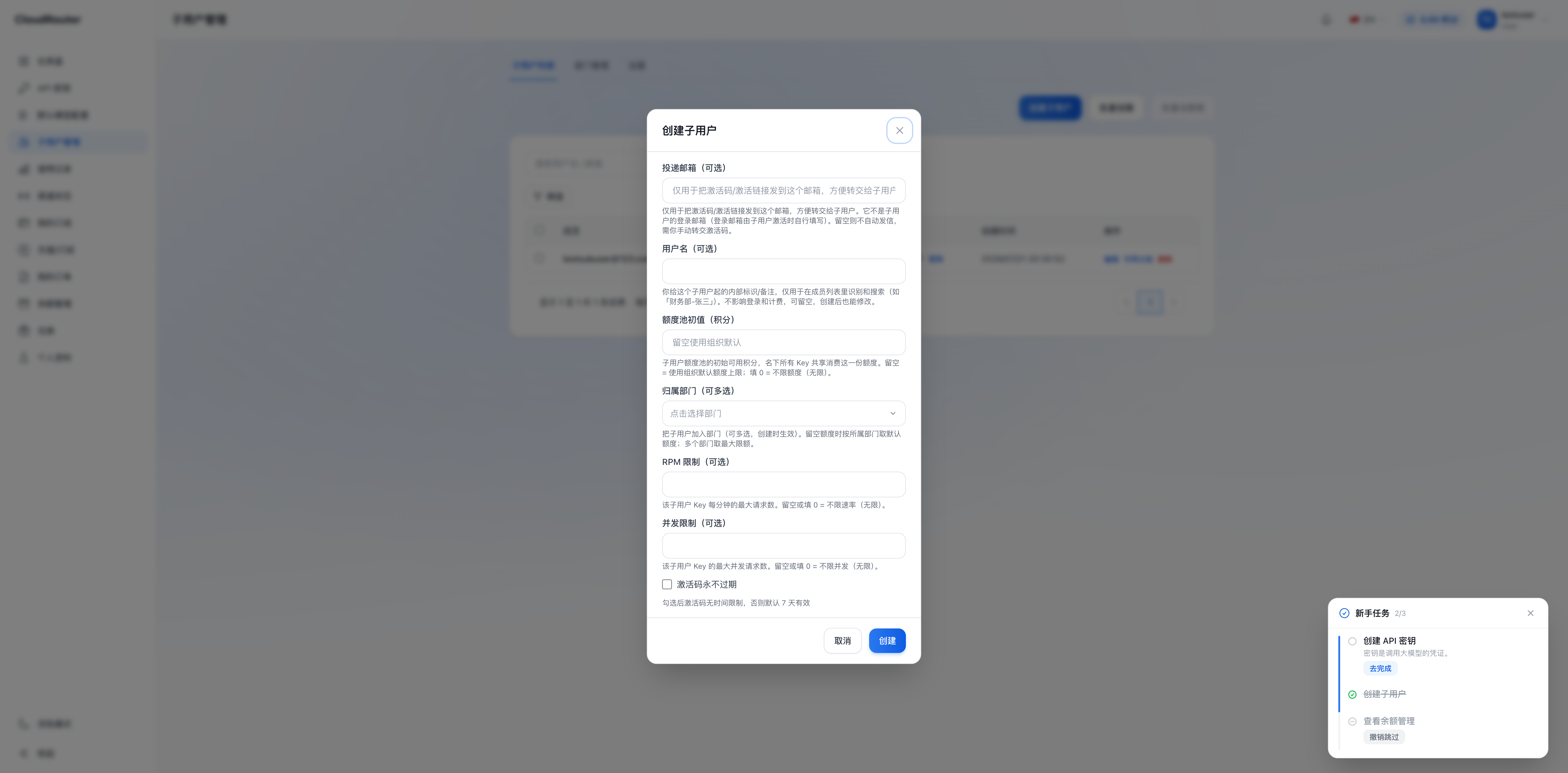
Field Descriptions
| Field | Required | Description |
|---|---|---|
| Delivery Email | No | Used only to send the activation code/activation link to this email for convenient forwarding to the sub-user. This is not the login email (the login email is filled in by the sub-user during activation). Leave blank to skip automatic sending, in which case you must forward the activation code manually |
| Username | No | An internal identifier/note assigned to the user, used only to identify and search in the member list (e.g., "Finance Dept - Zhang San"). It does not affect login or billing, can be left blank, and can be modified after creation |
| Initial Quota Pool Value (Credits) | No | The initial available credits in the sub-user's quota pool. All Keys under it share this quota for consumption. Leave blank = use the organization's default quota limit; enter 0 = unlimited quota |
| RPM Limit | No | The maximum number of requests per minute for this sub-user's Keys. Leave blank or enter 0 = no rate limit (unlimited) |
| Concurrency Limit | No | The maximum number of concurrent requests for this sub-user's Keys. Leave blank or enter 0 = no concurrency limit (unlimited) |
| Activation Code Never Expires | No | When checked, the activation code has no time limit; otherwise, it is valid for 7 days by default |
Business Rules
- Currently, username uniqueness within an organization is not enforced. Please agree on a naming convention yourself to avoid confusion
- Newly created sub-users are automatically assigned to the current organization
- After a sub-user is created, they must complete registration via an activation code before they can log in (see Section 4)
4. Sub-User Registration via Activation Code
Sub-users do not register through a public registration page. Instead, after the organization creates them, they complete registration using an activation code:
- After the organization creates a sub-user on the sub-user management page, obtain the sub-user's activation code (the specific method of obtaining and distributing it is subject to the actual console interface)
- Send the activation code to the corresponding member through a secure channel
- The member visits the activation page and uses the activation code to complete registration and set login credentials
- Once activation is complete, the member can log in to the console and see the 5 menu items
Please communicate the activation code through a secure channel to prevent unauthorized use.
5. Setting a Quota Limit for a Sub-User
When creating or editing a sub-user, the organization can set a quota limit to cap the sub-user's consumption. Here are several key concepts for understanding quotas:
- Quota is an allowance, not money: Money is uniformly deposited into the organization's balance pool, and the quota limit only determines the maximum amount a sub-user can spend
- Actual charges deduct from the organization's balance: When a sub-user makes a call, the amount is actually deducted from the balance of the organization (parent account) it belongs to; the quota is merely a cap
- Multiple Keys share the same quota limit: If a sub-user has multiple Keys, these Keys share the same quota limit (i.e., a cumulative consumption count against the quota limit), rather than each Key having its own share
- When the quota is exhausted, all Keys under it are rejected together: Once a sub-user's quota is exhausted, all Keys under it will be rejected for calls, rather than just one being stopped
For a complete explanation of funds and quotas, see Balance Management & Quota Allocation.
6. Managing Existing Sub-Users
In the sub-user list, the organization can perform the following management actions on sub-users:
6.1 Edit
Modify a sub-user's username, delivery email, quota limit, and other information.
6.2 Disable / Enable
- After being disabled, the sub-user cannot log in or use the service, and all Keys under it are disabled as well
- After being enabled, they return to normal
- Disabling is one effective means of restricting a sub-user's calls (another is lowering / exhausting its quota limit)
6.3 View Keys and Usage Under a Sub-User
On the sub-user management page, the organization can view the following for each sub-user:
- Keys under it: Sub-users can create their own Keys on their own (see Section 7), and the organization can also create and distribute Keys on their behalf; the organization can view the list of Keys under a sub-user
- Usage: The sub-user's call usage and consumption
6.4 Delete
- After deletion, the sub-user is removed from the organization
- ⚠️ Usage aggregation after deletion: After a sub-user is deleted, its historical usage is aggregated into the organization it belongs to and is not retained separately at the user level. If you need to retain per-user usage details, please export or verify them before deletion.
7. Sub-User Keys: Self-Service Creation
Sub-users can create their own API Keys on their own, and the organization can also create and distribute them on their behalf. Both methods coexist:
- On the "API Keys" page (
/keys), sub-users can create multiple Keys on their own, each named independently - When a sub-user creates a Key, the routing group can only be selected within the scope authorized by the organization (the dropdown lists only the authorized groups)
- The multiple Keys under a sub-user share the same quota limit (see Section 5), and actual charges deduct from the organization's balance
- The advanced "Scheduling Group Whitelist" is exclusive to the organization and is not shown when sub-users create/modify Keys
The organization can choose as needed: let sub-users create Keys on their own (subject to authorized groups + quota limit constraints), or have the organization create and distribute them centrally. Costs for both methods deduct from the organization's balance.
For details on Key creation and routing group configuration, see API Keys & Routing Groups.
8. About Joining via Invitation
The old version's "Invitation Link / Invitation Management" does not currently have a corresponding entry in the new console. Please onboard members through the "Create Sub-User + Activation Code" method.
9. FAQ
Q: Can sub-users create their own Keys? A: Yes. Sub-users can create multiple Keys on their own on the "API Keys" page, and routing groups can only be selected within the scope authorized by the organization; alternatively, the organization can create and distribute them centrally. Regardless of the method, costs deduct from the organization's balance.
Q: How do I restrict a specific sub-user's calls? A: Two ways — disable the sub-user's account; or lower / exhaust its quota limit (when the quota is exhausted, all Keys under it are rejected together).
Q: Are the multiple Keys of a sub-user billed independently? A: No. All Keys under a sub-user share the same quota limit, and actual charges all deduct from the organization's balance.
Q: After deleting a sub-user, do their usage records still exist? A: The usage is aggregated into the organization it belongs to and is no longer retained separately at the user level. If you need per-user details, please verify or export them before deletion.
Q: Can a username be duplicated with that of another sub-user? A: Currently, uniqueness within an organization is not enforced, and the system will not block duplicates. We recommend agreeing on a naming convention yourself to avoid confusion.
Q: Why are there so few menu items after a sub-user logs in? A: Sub-users only have 5 menu items (Dashboard, API Keys, Default Model Configuration, Usage Records, and Profile). They cannot see organization-exclusive entries such as Sub-User Management, Balance Management, or Redemption, and manually entering the URL will redirect them back to the Dashboard.
Q: How do I change my password? A: After logging in, go to the "Profile" page to change your password.